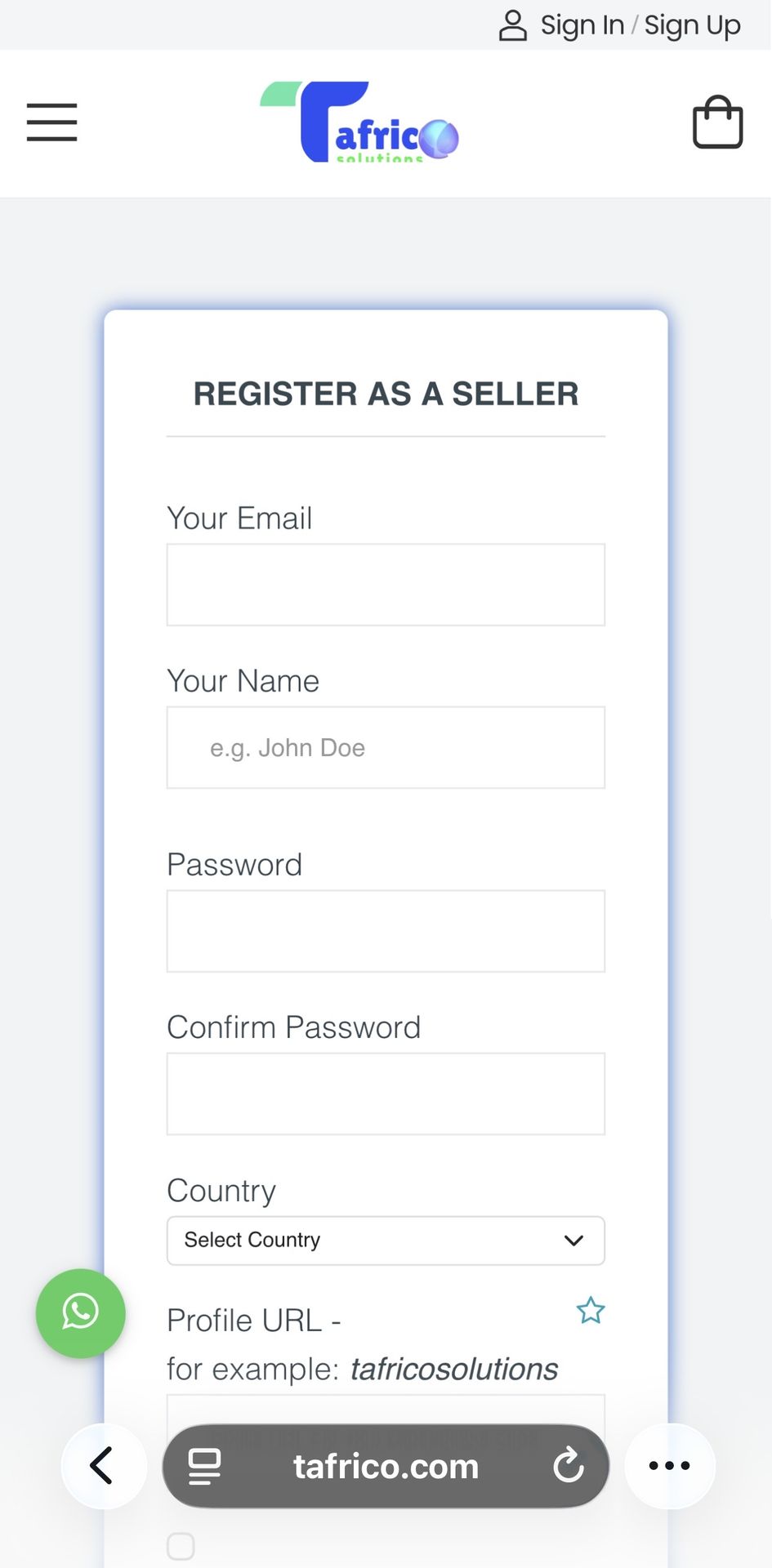
🟢 STEP 1 — Register Your Seller Account
👉 Click “OPEN MARKETPLACE STORE” to begin
Fill in your details and click Sign Up
enter profile url like so: tafricosolutions (use your shop name)
⚡ Once you register, you will be automatically redirected to your Seller Profile setup page
Understanding the buttons
Seller Profile
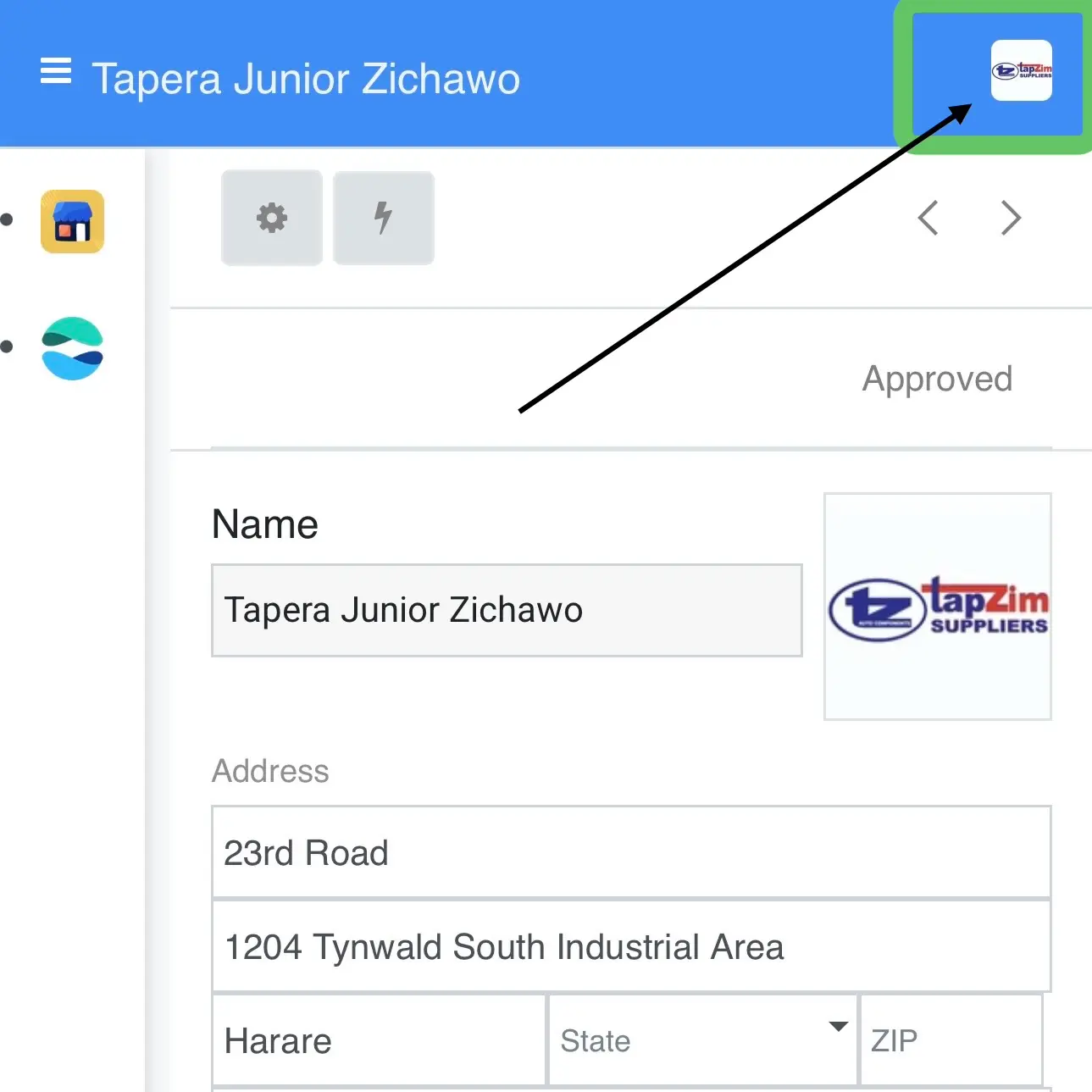
You are now on your Seller Profile Setup page
Fill in all details. Your name, address, phone number, also enter WhatsApp number in any of the fields.
Tap highlighted icon circled in green to "Download App."
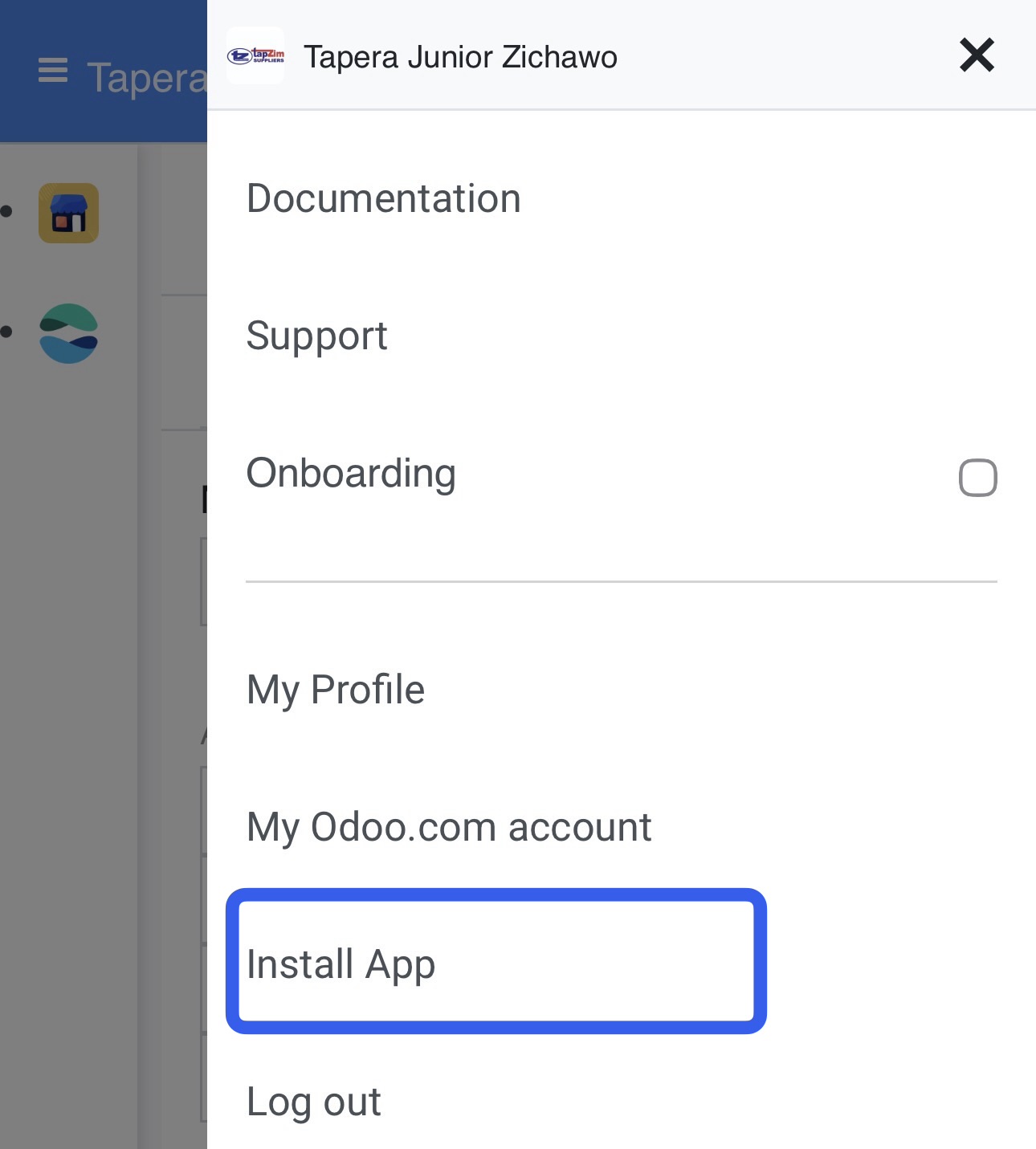
Tafrico App
Tap install to add the Tafrico web application to your home screen.
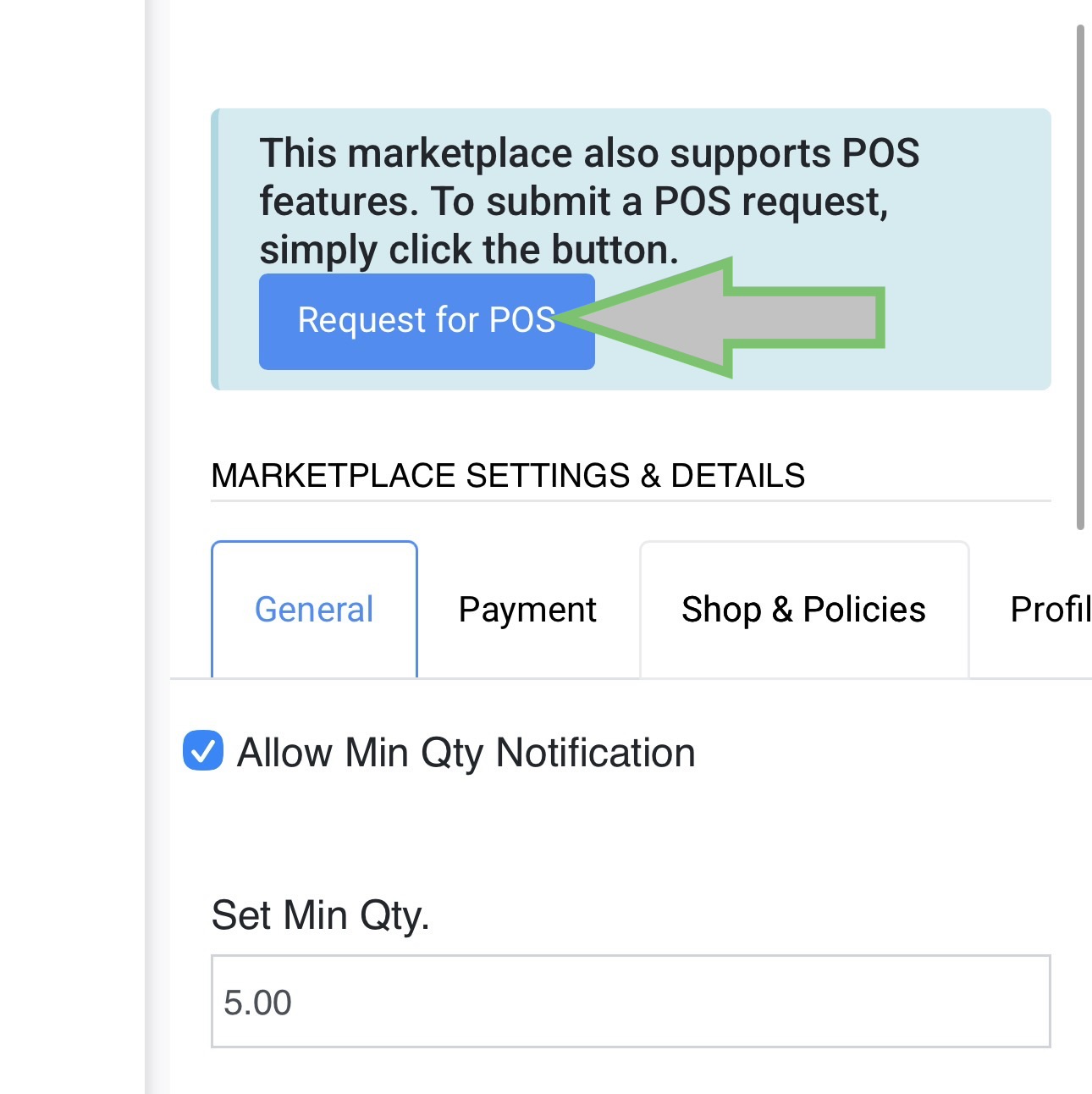
POs Activation
If your store does require POs, you can request by pressing "request for POS". you have one FREE POs to activate, additional POs will cost $10 per month.
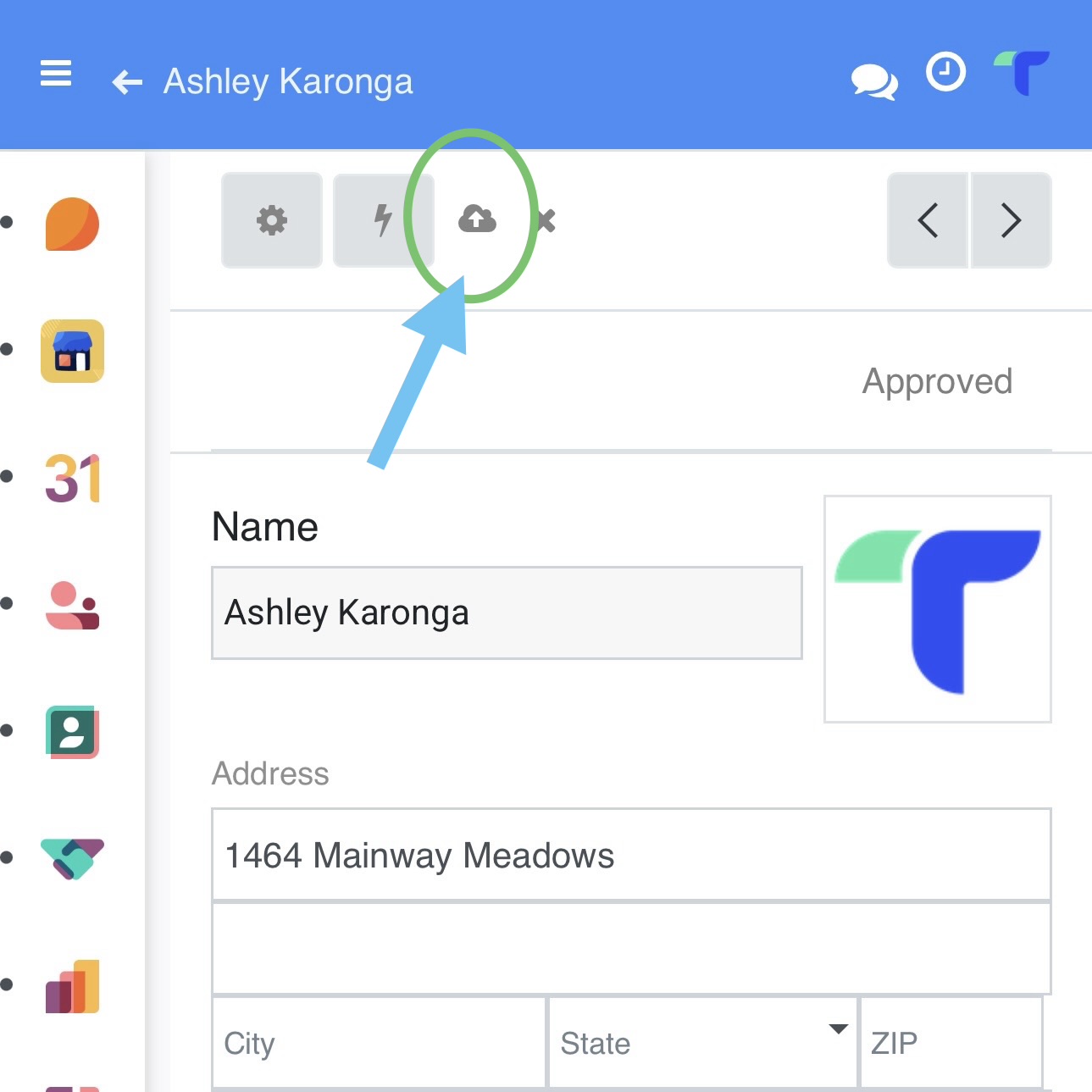
SAVE YOUR INFORMATION!
Always remember to save your information before exiting or proceeding onto another page or, else your information will be lost. Information is saved manually by pressing the highlighted icon.
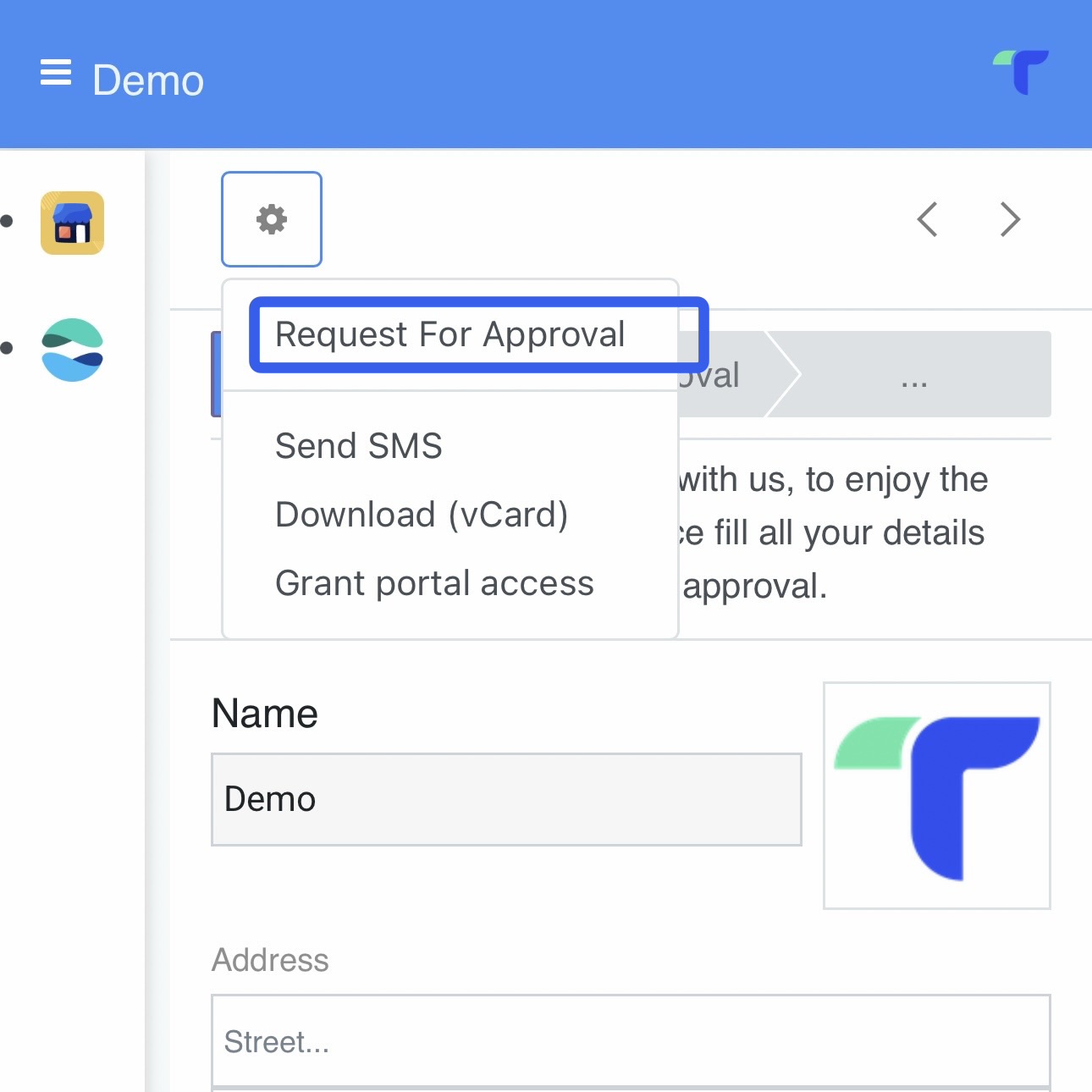
Step 6
After saving your information, Tap the "gear" button to request for "account approval." Always remember to save your information.
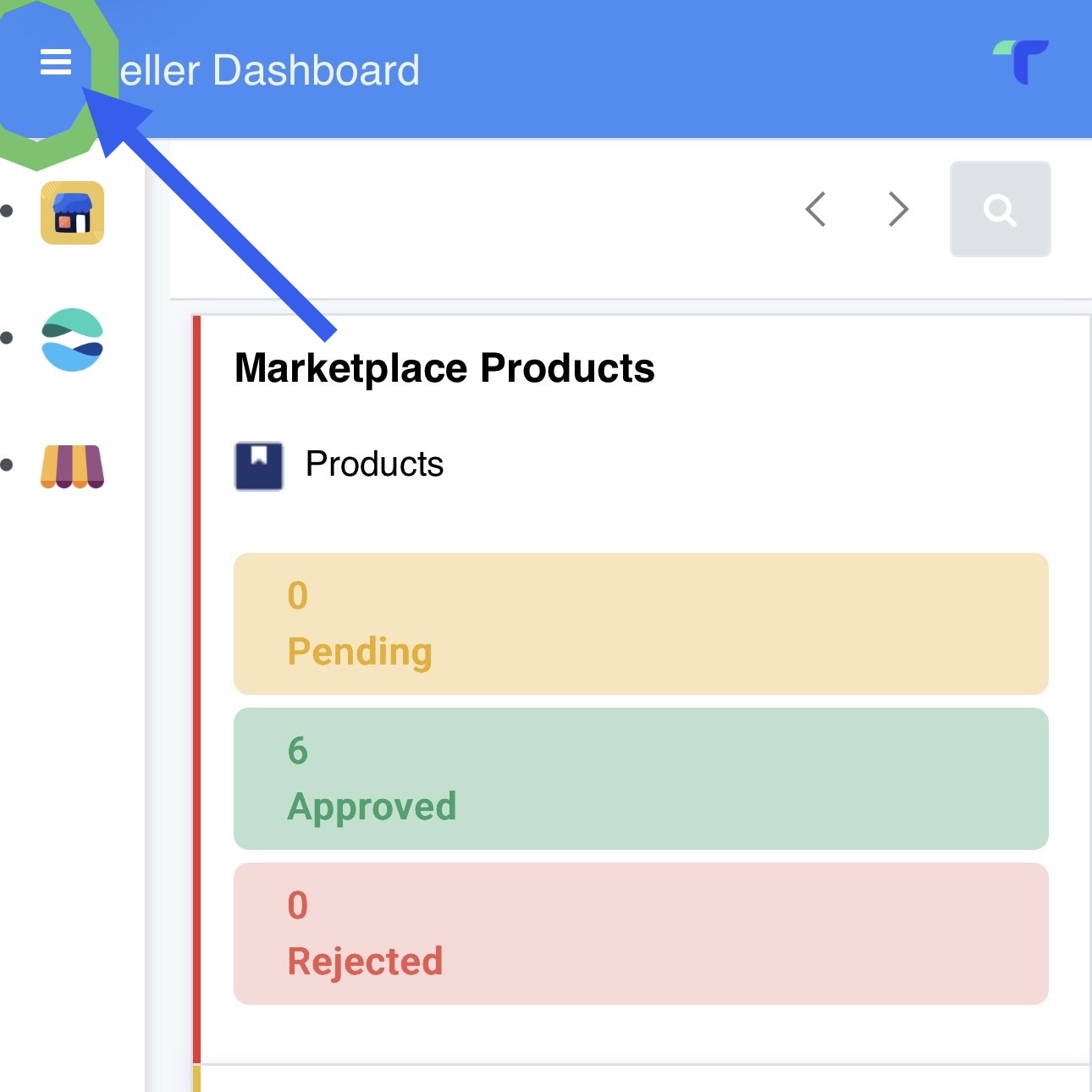
Menu icon
Tap the highlighted icon "MENU". the Menu will open more options for the "SELLER DASHBOARD" and more options for "POS."
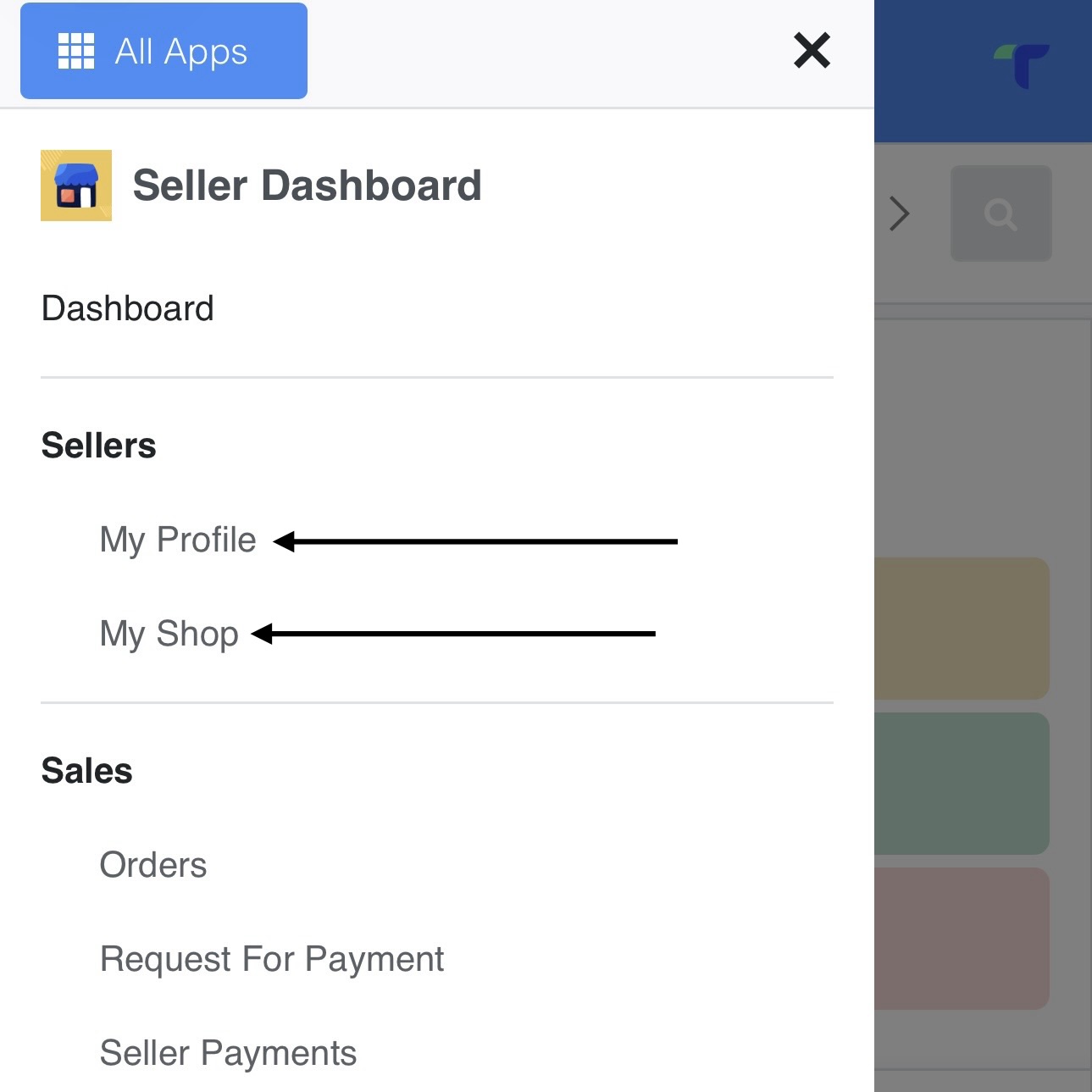
SELLER DASHBOARD MENU
After pressing 'menu" button you can see 'my profile', 'my shop' and 'orders' under sales records.
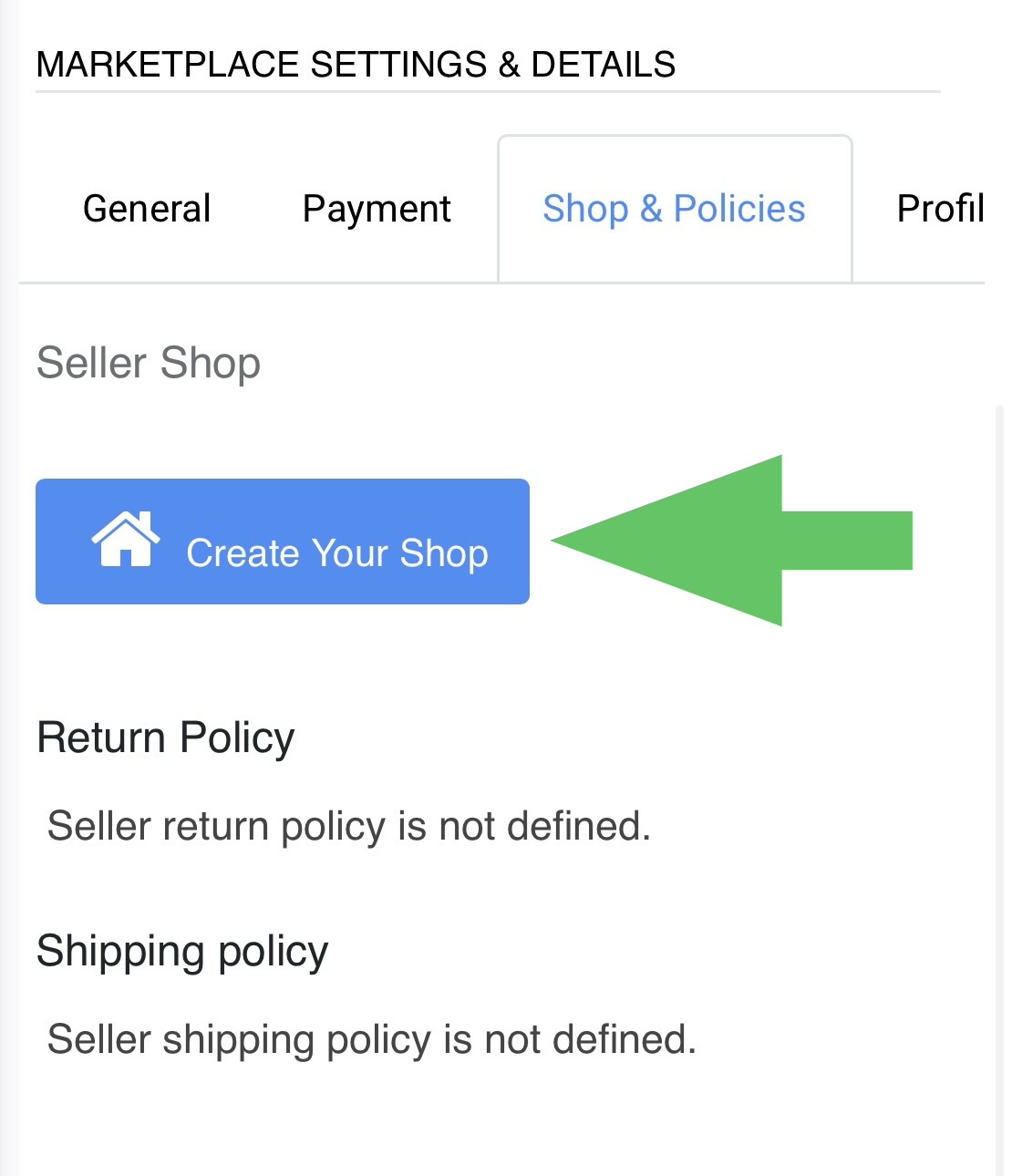
MY SHOP
You can create shop under your profile section and begin adding your products from there. You can also access your shop under the menu section.
Edit Return & Shipping policy.
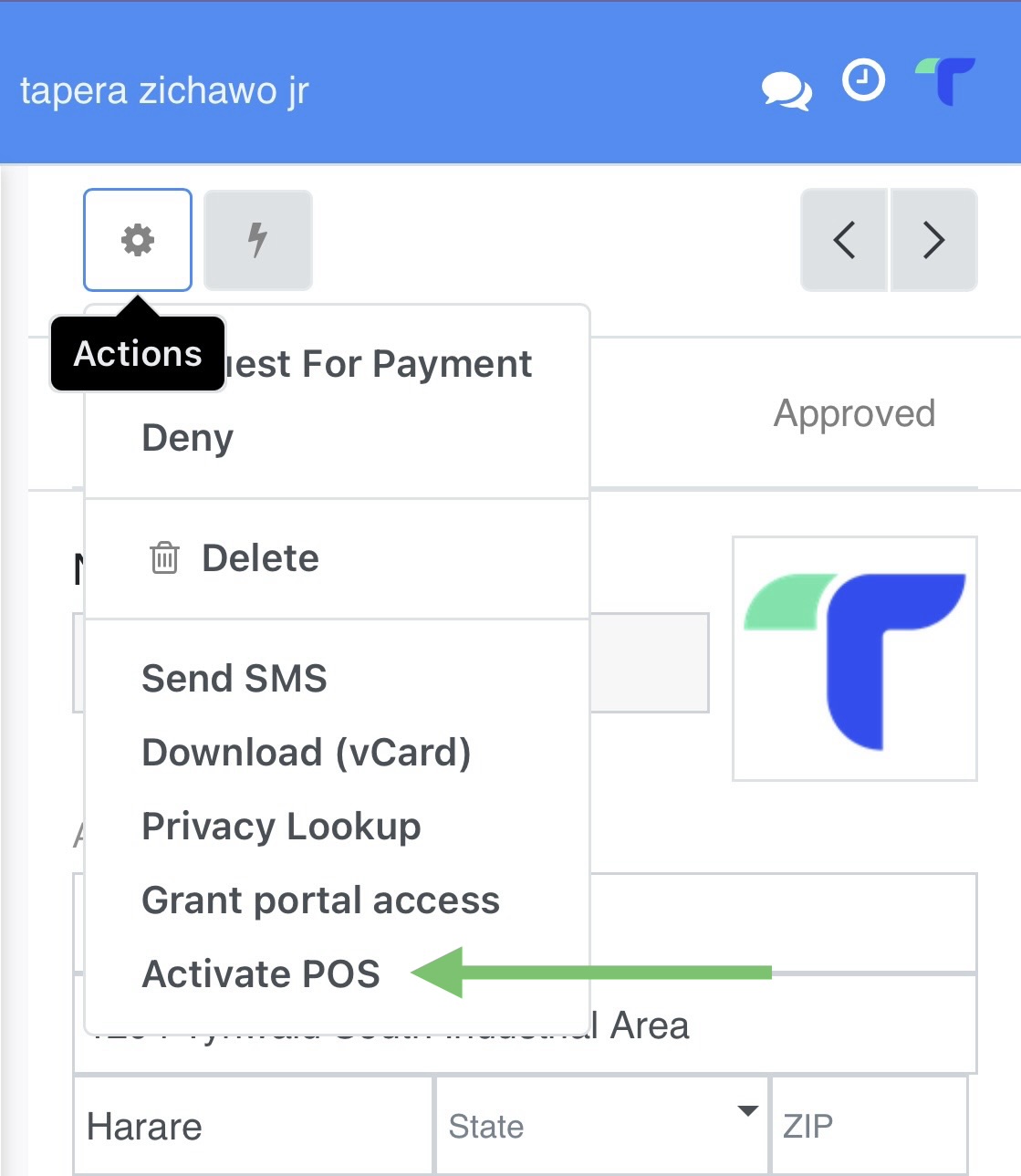
More POs Staff & Shops
You can tap the gear button to request more POs shops and POs staff.
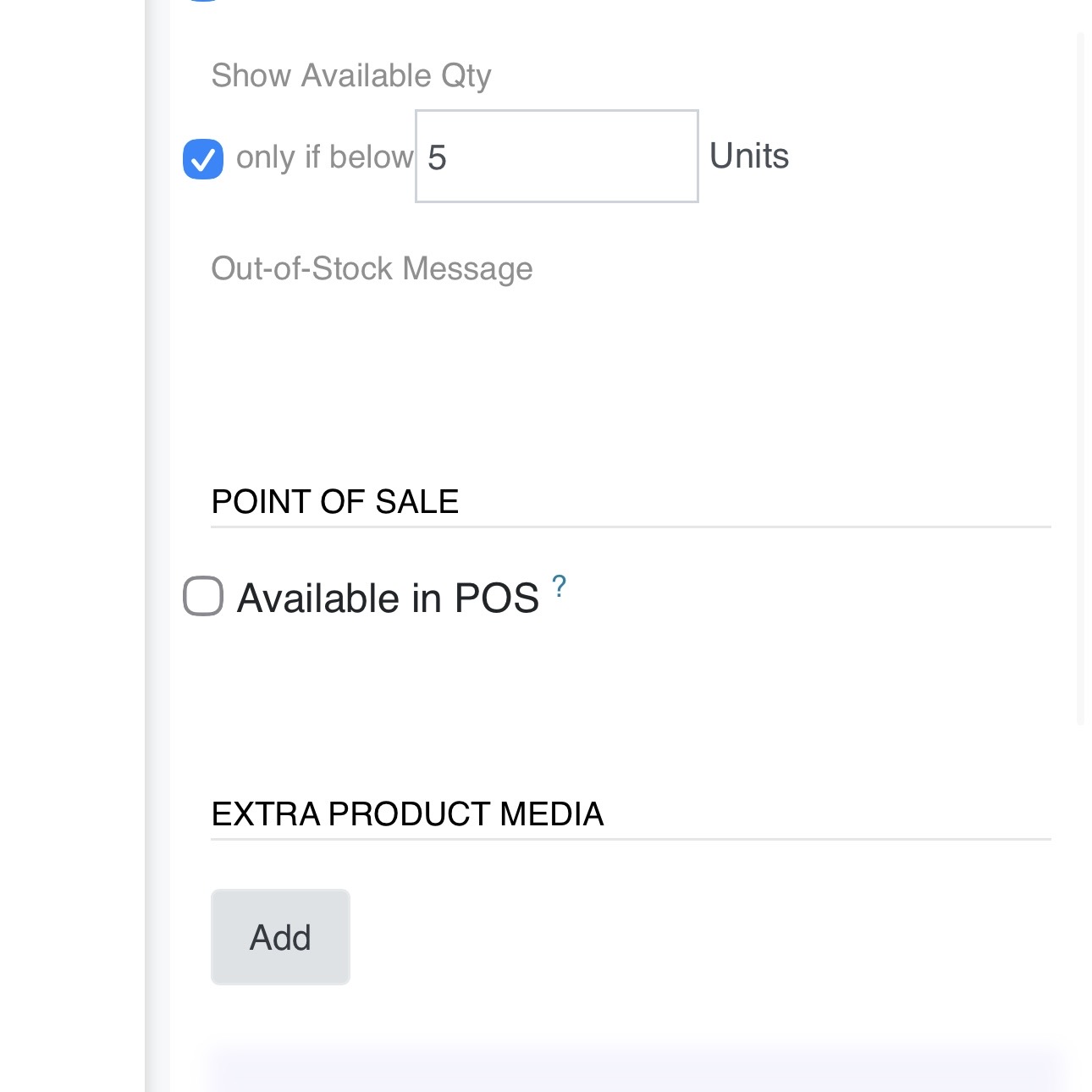
Product media & POs adding
Tick the checkbox button to make your product available on POs for in store orders.
tap "ADD" under EXTRA PRODUCT MEDIA to add more product pictures of the same item.

Publishing your products
Tap the Lighting button to publish your product on the marketplace and publish same product on your POs.
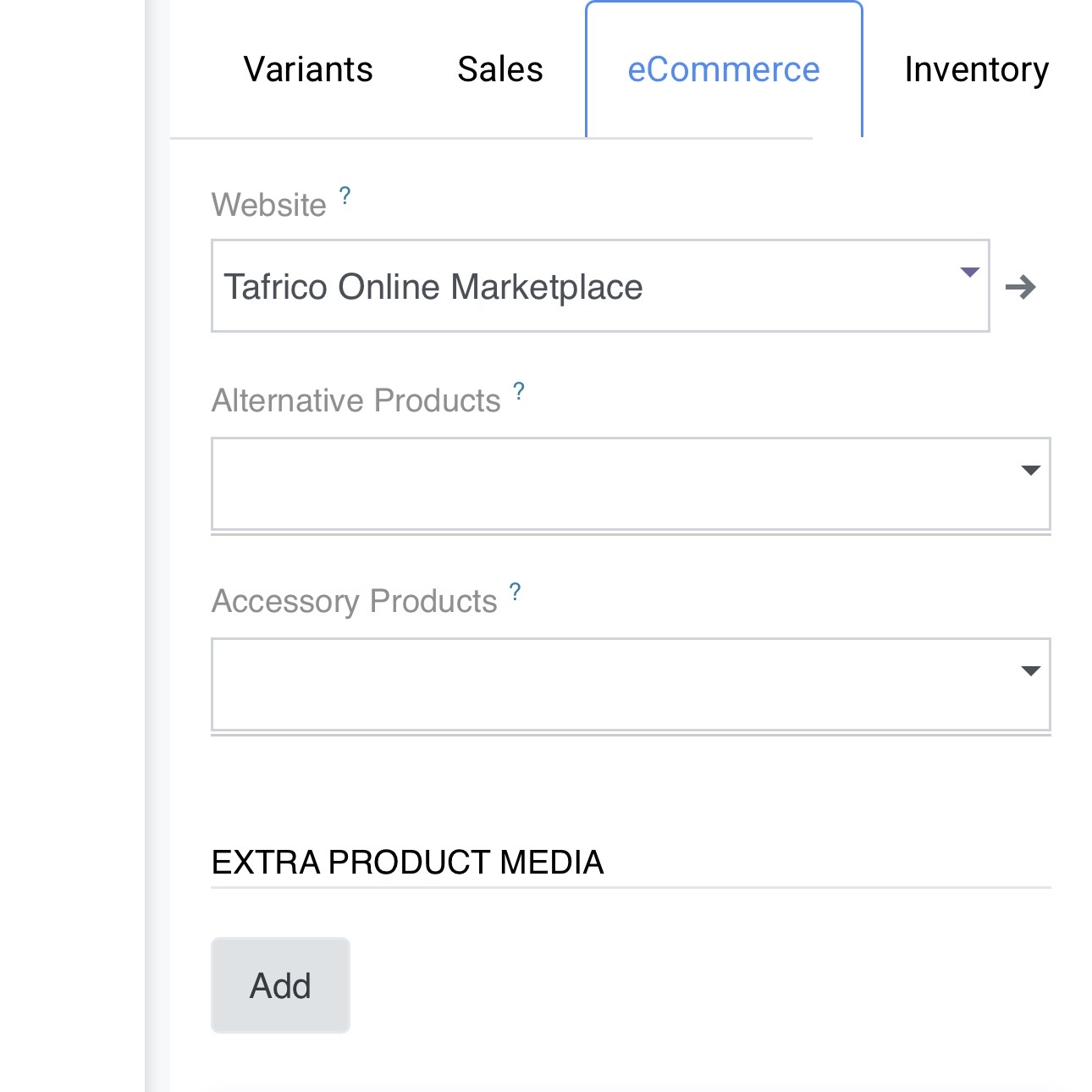
Publish on Tafrico
Make sure your product is published on the right site. Under Website, tap if empty and tap the TAFRICO ONLINE MARKETPLACE.
Product uploading & saving
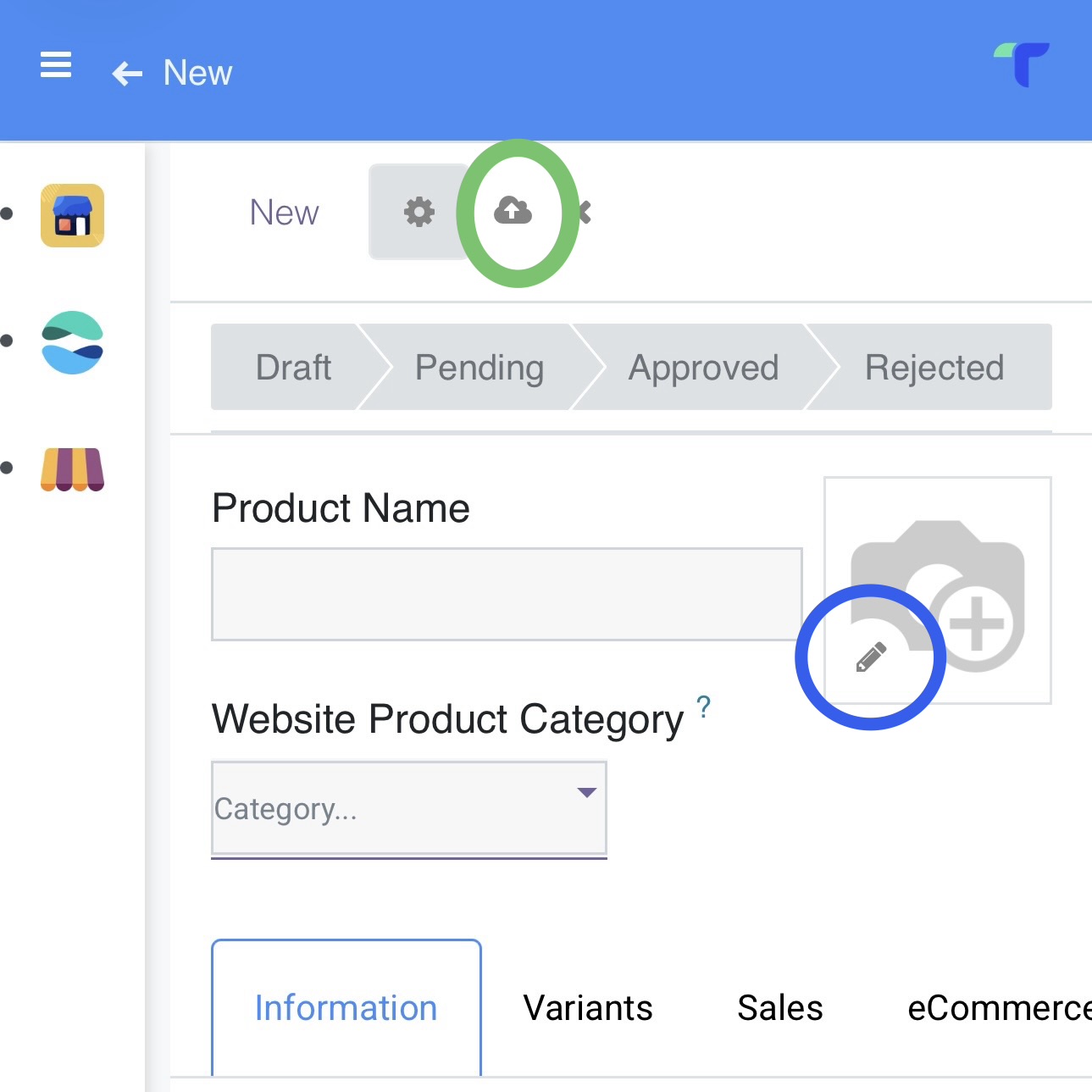
When adding your product, tap the blue circled icon to add first product image.
Fill in all other product details and remember saving your product by tapping the circled green icon.
Cancel
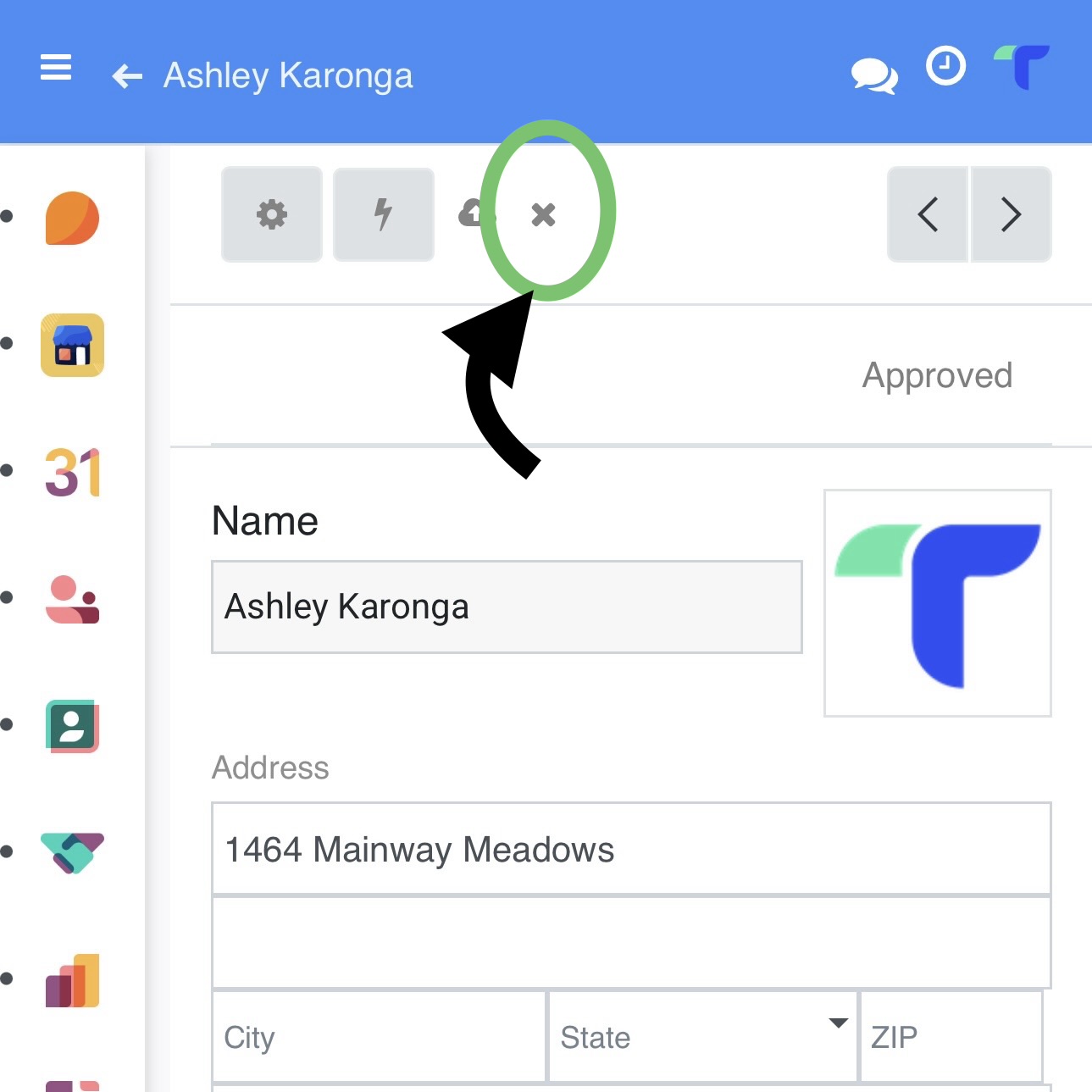
Press the "x" button to cancel information you have entered.
Your inbox
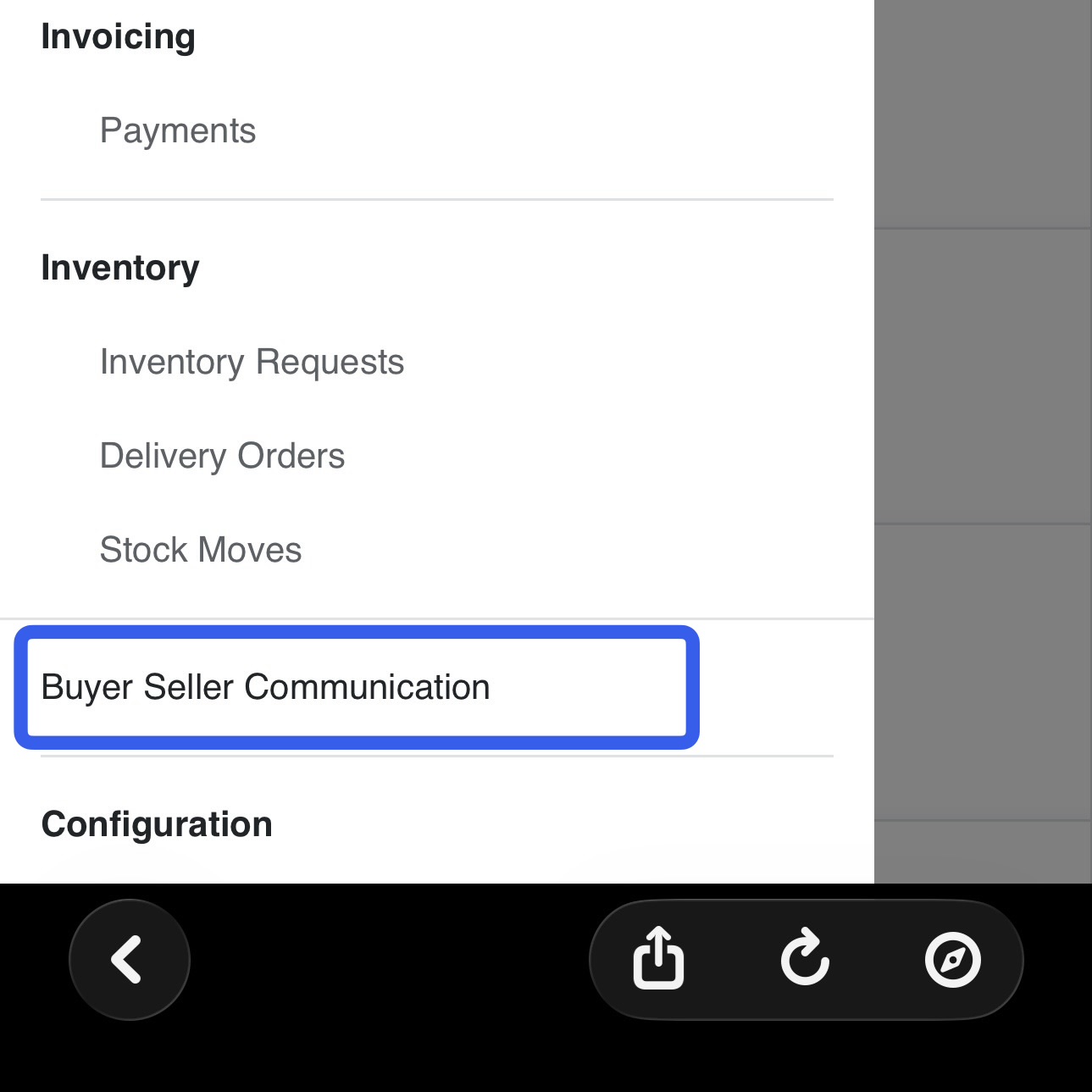
The buyer seller communication is available when you press menu under the seller dashboard. This section is were you are to receive new orders and inquiries.
POS MENU
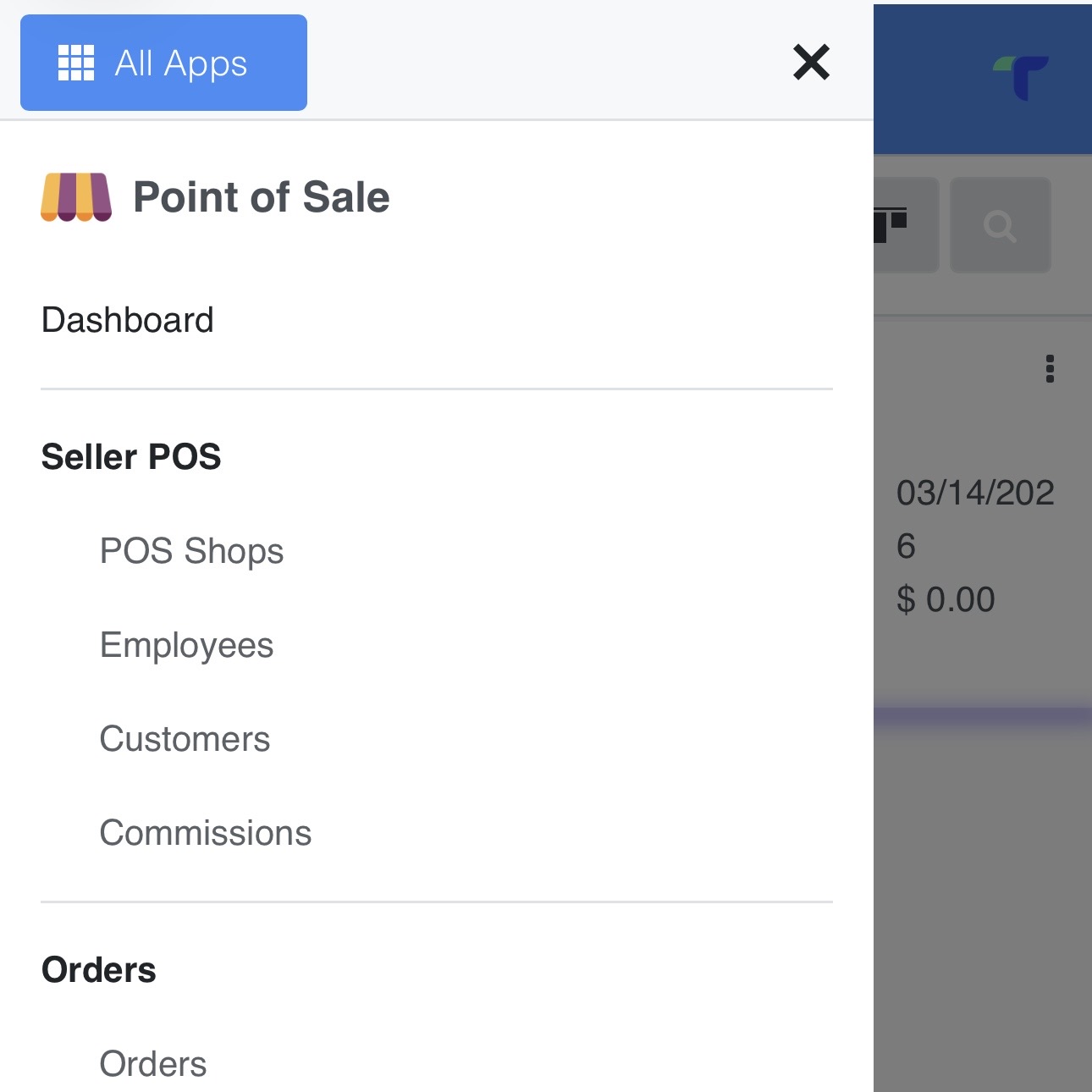
Under the POs menu, you can access your Pos shops, employees, customers and orders.
if you scroll down, you will see section "products". Tap if you want to add products to the POs only.